
This is a document that you will need for the Performance Task for MP5. You will need to attach this spreadsheet to your completed assignment in one month.
Directions:
- You must budget the money you receive from work, allowance, or gifts for this month, then track how you spend the money from Monday March 16, 2026 to Friday April 17 2026. You will use the data that comes from the spreadsheet to create your Monthly Budget Infographic.
- I will remind you every week to update your spreadsheet with the money spent during the week. It will be your responsibility to keep your receipts for documenting.
- Each week you will submit a screenshot of your updated transaction page to this assignment
- You will use the information generated by the spreadsheet to create your Monthly Budget Infographic and write a two paragraph reflection on what you learned about your spending and saving habits.
PART I: Monthly Budget Tracker Sheet
Step 1: Open the Budget Spreadsheet
- Open the spreadsheet I provided to you in Google Classroom.
- You will see two main tabs:
- Summary Tab – shows totals and your budget.
- Transactions Tab – where you enter your daily income and expenses.
⚠️ Important: Only write in the pink highlighted areas on the Summary sheet. Do NOT type in the white areas because they contain formulas.
Step 2: Fill Out the Pink Areas on the Summary Tab
⚠️ Important: Before you begin tracking money, you must plan your budget.
Summary Tab
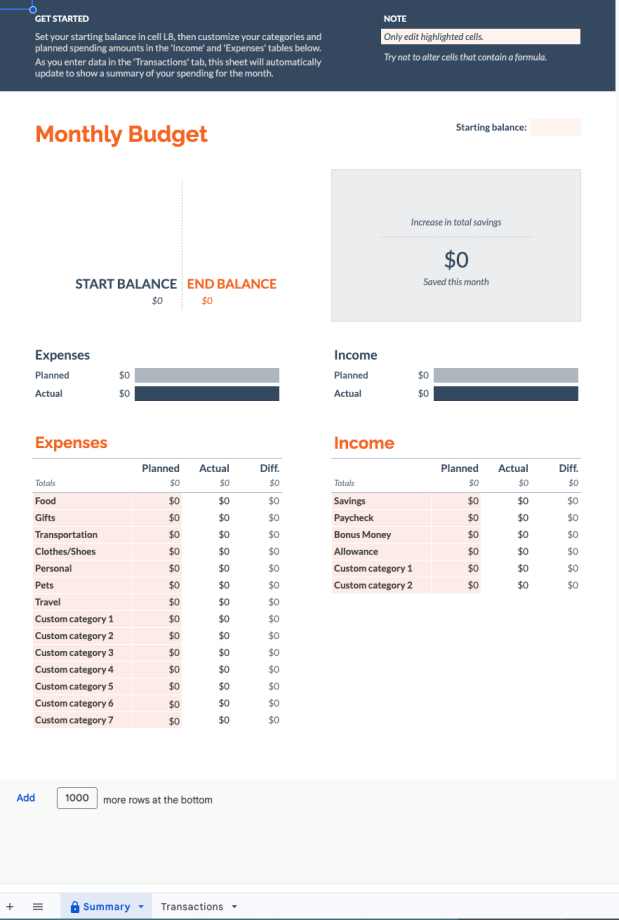
Go to the Summary tab. Look for the pink highlighted cells and fill in:
Planned Income
- Planned Income for the Month
- Example: allowance, job pay, gifts, side jobs.
Planned Spending
- Estimate how much you think you will spend in categories like:
- Food
- Shopping
- Entertainment
- Transportation
- Subscriptions
- Streaming Services
NOTE: If a category does not apply to you, add one that does. (Change the Custome Category to your own).
- This step is called Creating a Budget because you are planning how you expect to spend your money.
Step 3: Record Transactions Daily
Transactions Tab
Click the Transactions tab.
- Every time you receive or spend money, enter it here.
- For each transaction include:
- Date
- Description (what you bought or received)
- Category (food, shopping, entertainment, etc.)
- Amount
NOTE: You must attach a category to your spending/income you input. The Summary tab will update automatically as you enter transactions. If you don’t assign a category your summary tab will not update.
📌 Goal: Update this every day so your data stays accurate.
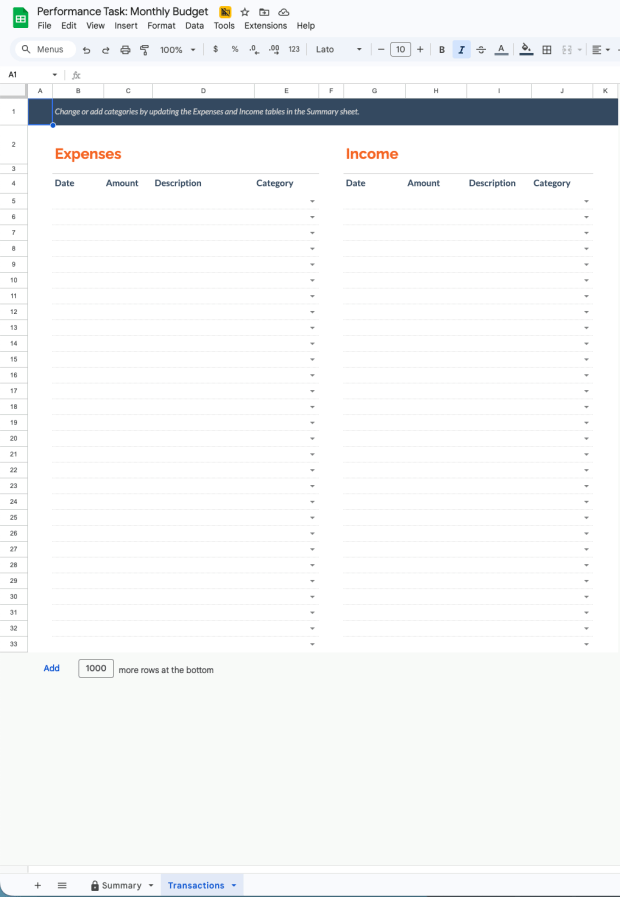
Step 4: Update Your Spreadsheet Throughout the Month
I will remind you once a week (Wednesday) to update your Transactions Tab, but you are responsible for updating it the rest of the days. Continue entering transactions from March 16, 2026 through April 17, 2026.
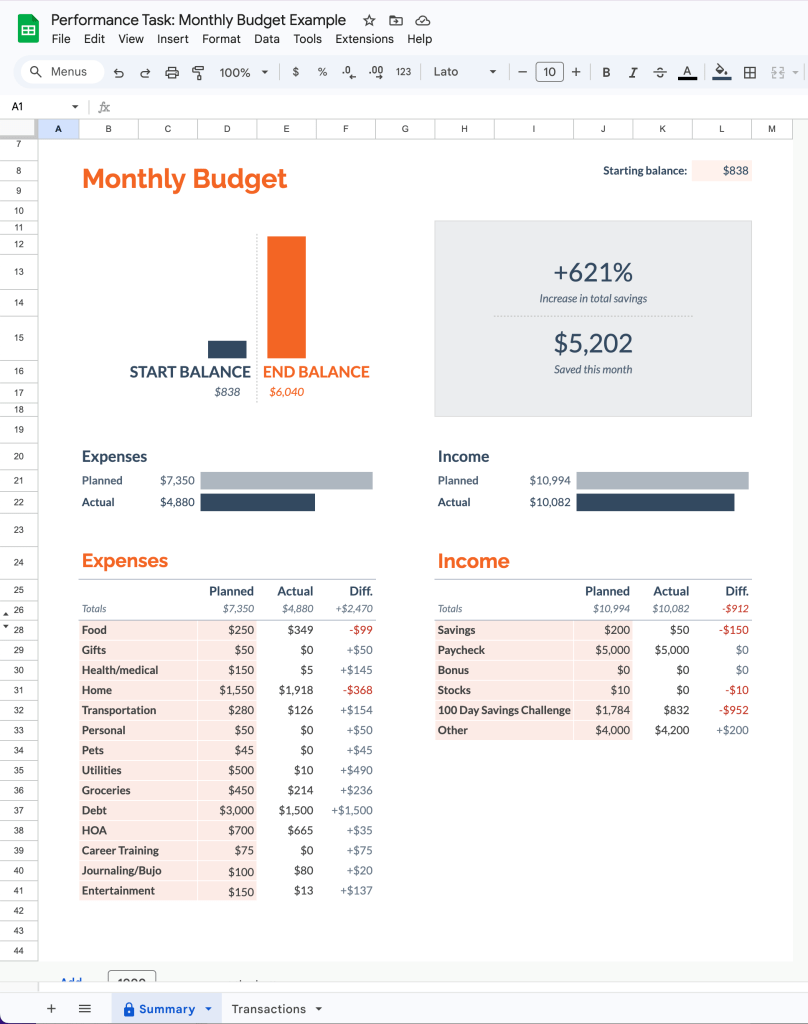
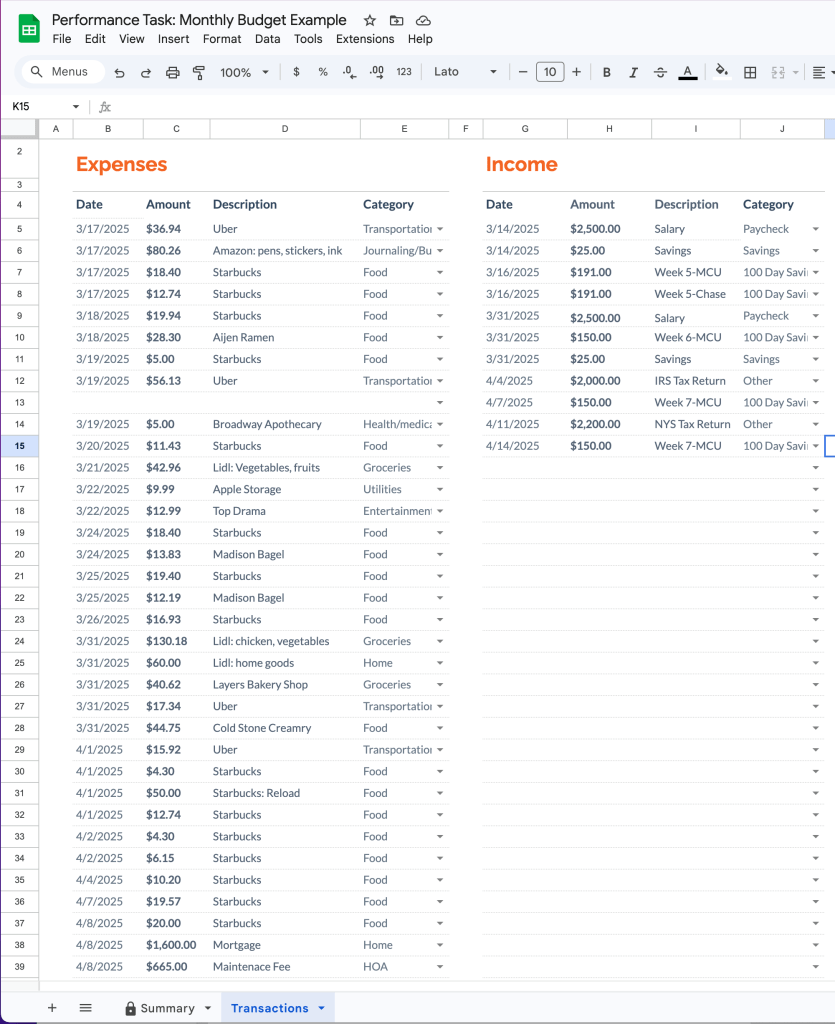
 Creative Designs and Technology Education